CmdWarden Vault desktop app
CmdWarden Vault is a Windows desktop window. It reads the same policy file, vault, and audit trail as the CLI. It never shows a secret value. Open it from the Start Menu entry CmdWarden Vault or the Desktop icon.
cw shortcut status              # where each shortcut is, and if it exists
cw shortcut install             # create the Start Menu entry and start the tray icon at logon
cw shortcut install --desktop   # also create the Desktop icon
cw shortcut remove              # delete the Start Menu, Desktop, and logon entries
Run cw shortcut install again after every reinstall of the tool. The shortcuts point at the exe inside the tool folder.
Tray icon
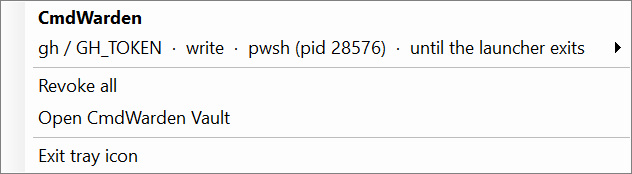
The CmdWarden tray icon runs from logon. cw shortcut install adds it to the Startup folder and starts it. Click the icon to open its menu:
- One row per live session allow: tool, secret name, class, launcher process, and when it ends. Point at a row and click Revoke to end that grant.
- Revoke all ends every session allow, the same as
cw policy sessions --revoke-all. - Open CmdWarden Vault opens the window.
- Exit tray icon closes the icon until the next logon.
The icon also shows a notification when CmdWarden blocks a launcher with no popup:
- A launcher runs a tool again after you denied it, and the deny cooldown blocks the retry.
- A launcher uses a canary token.
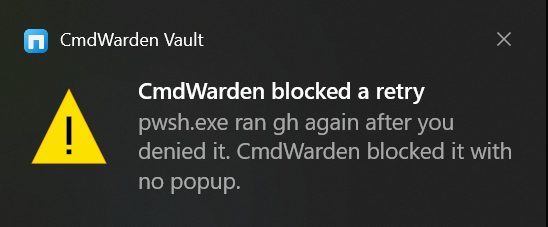
The tray icon shows one notification per launcher and tool each minute, so a retry loop does not fill the screen.
Window layout
- Left nav: six page buttons. Click « or press [ / ] to collapse the nav to an icon rail.
- Title bar: page name, a Session Agent badge (Up / Agent down), and one primary button (+ Add secret on Secrets, Run scan on Detectors, Refresh elsewhere).
- Body: the page content. Every page is read-only except Secrets and Secret Gates.
Keys
Each button shows its key next to its label.
| Key | Where | Does |
|---|---|---|
| F5 | Every page | Refresh the page. On Detectors, run a scan. |
| Ctrl+N | Secrets | Open Add secret. |
| Down / Up | Secrets | Select the next or the previous card. |
| Del | Secrets | Delete the selected card. A dialog asks you first. |
| Esc | Secrets | Clear the selection. |
| Ctrl+E | Secret Gates | Open Enroll launcher. |
| Del | Secret Gates | Unenroll the selected launcher. A dialog asks you first. |
| Esc | Secret Gates | Clear the selection. |
| [ / ] | Every page | Collapse or expand the nav. |
| Enter | Add secret, Delete secret, Enroll launcher, Set level, Unenroll launcher | Save, Delete, Enroll, Set level, or Unenroll. |
| Esc | Every dialog | Cancel. Nothing changes. |
Pages
| Page | Shows | CLI twin |
|---|---|---|
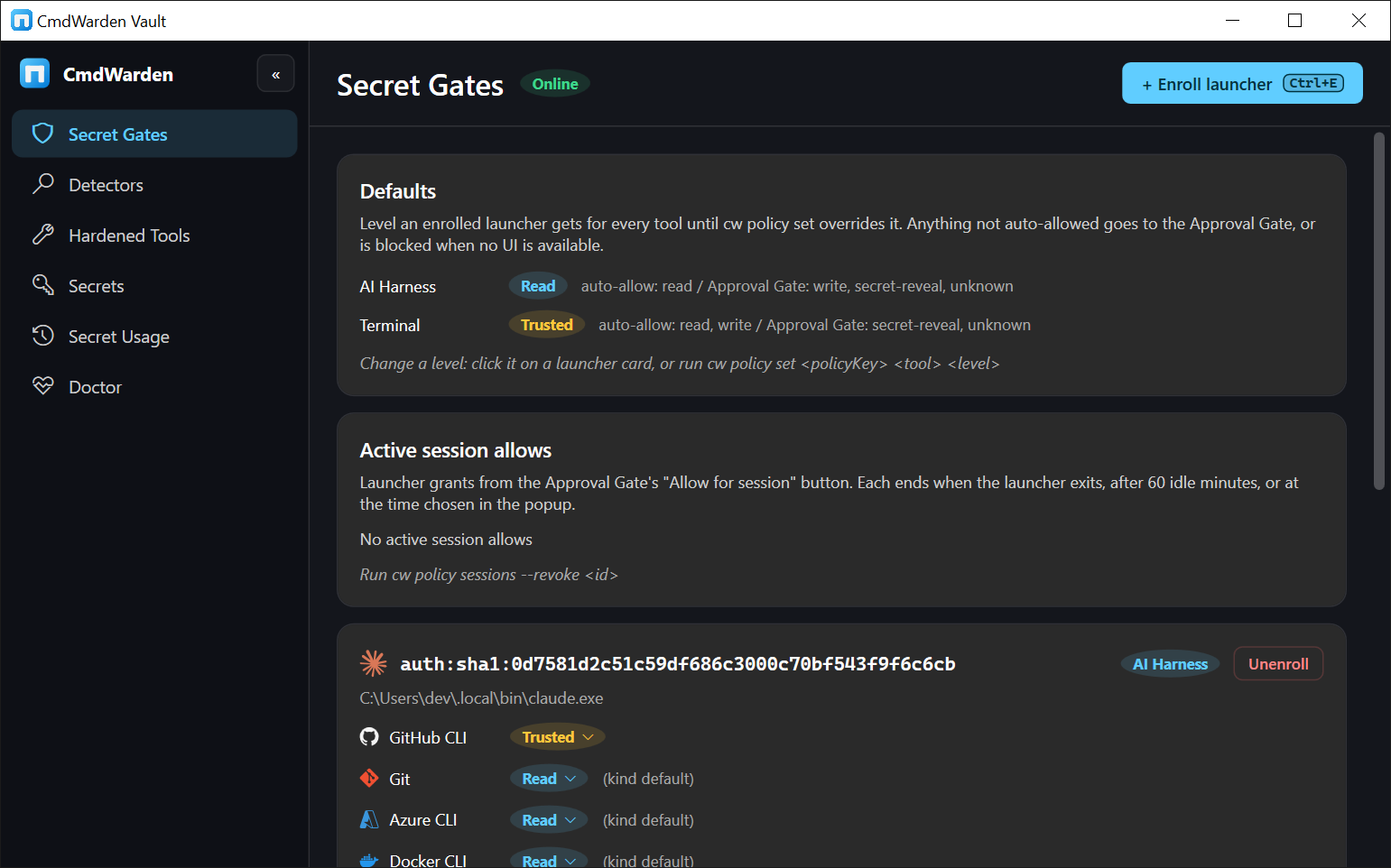
| Secret Gates | Defaults card: the level each launcher kind gets (AI Harness → Read, Terminal → Trusted). One card per enrolled launcher: kind pill, policy key, path, and which command classes auto-allow or go to the Approval Gate. Active session allows card: every live "Allow for session" grant with granted, last used, expires, and end times. Enroll a launcher, set a level, or unenroll a launcher. | cw policy list, cw policy sessions, cw policy enroll, cw policy set, cw policy unenroll |
| Detectors | Residual risk findings: title, tool, severity pill, summary, evidence, and remediation. Empty state: Nothing to fix. | cw scan |
| Hardened Tools | One card per catalog tool (gh, git, az, docker): pinned path and a pill Hardened, Degraded, or Not hardened with the reason. Strong mode shows in the note. |
cw harden --list, cw doctor |
| Secrets | Every secret name in the vault. + Add secret opens a dialog. Delete on a selected card asks for confirmation. | cw save, cw delete |
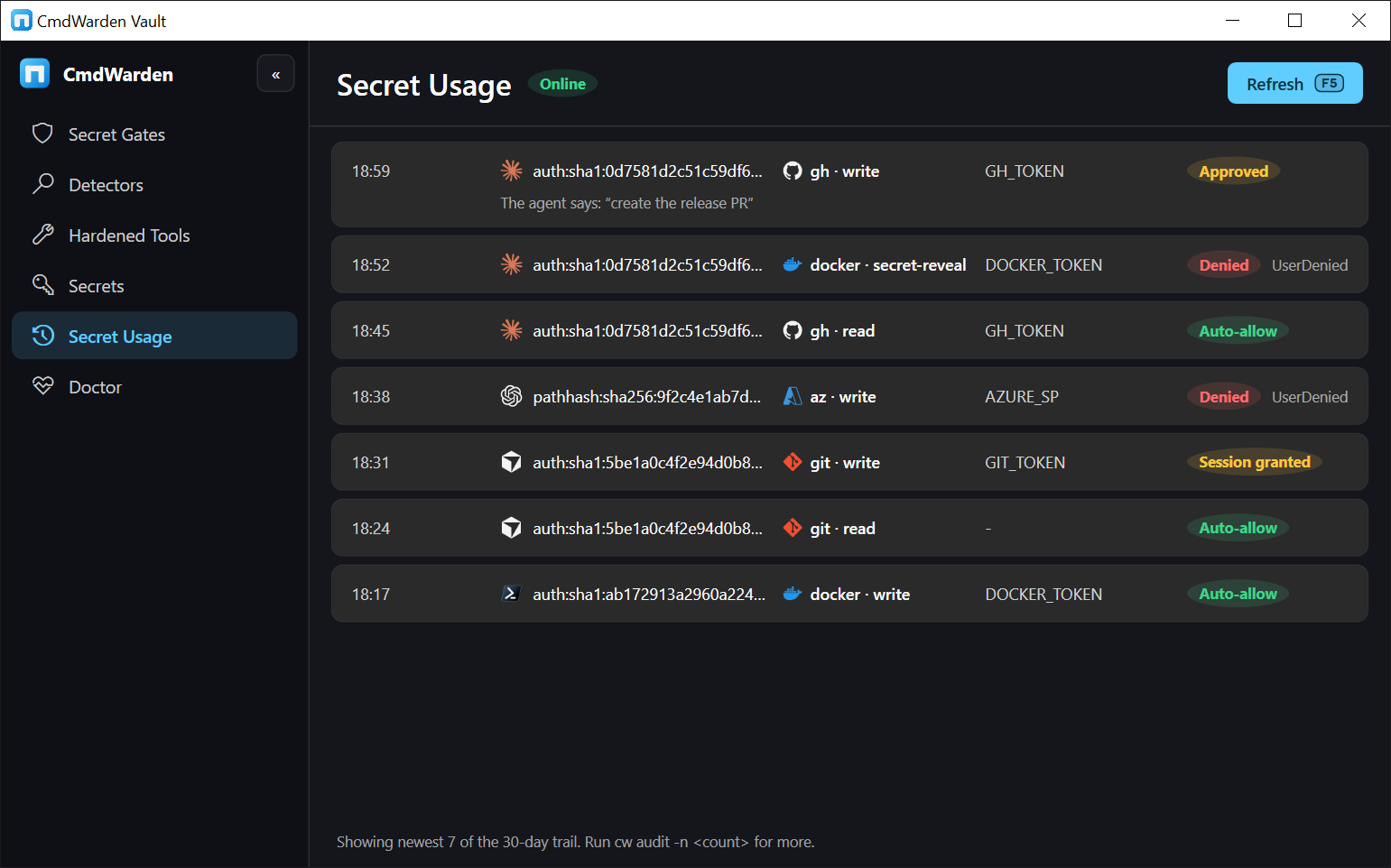
| Secret Usage | Recent gate decisions: time, launcher, tool · class, secret name, decision pill (Auto-allow, Approved, Session granted, Session allow, Denied), and reason code. | cw audit |
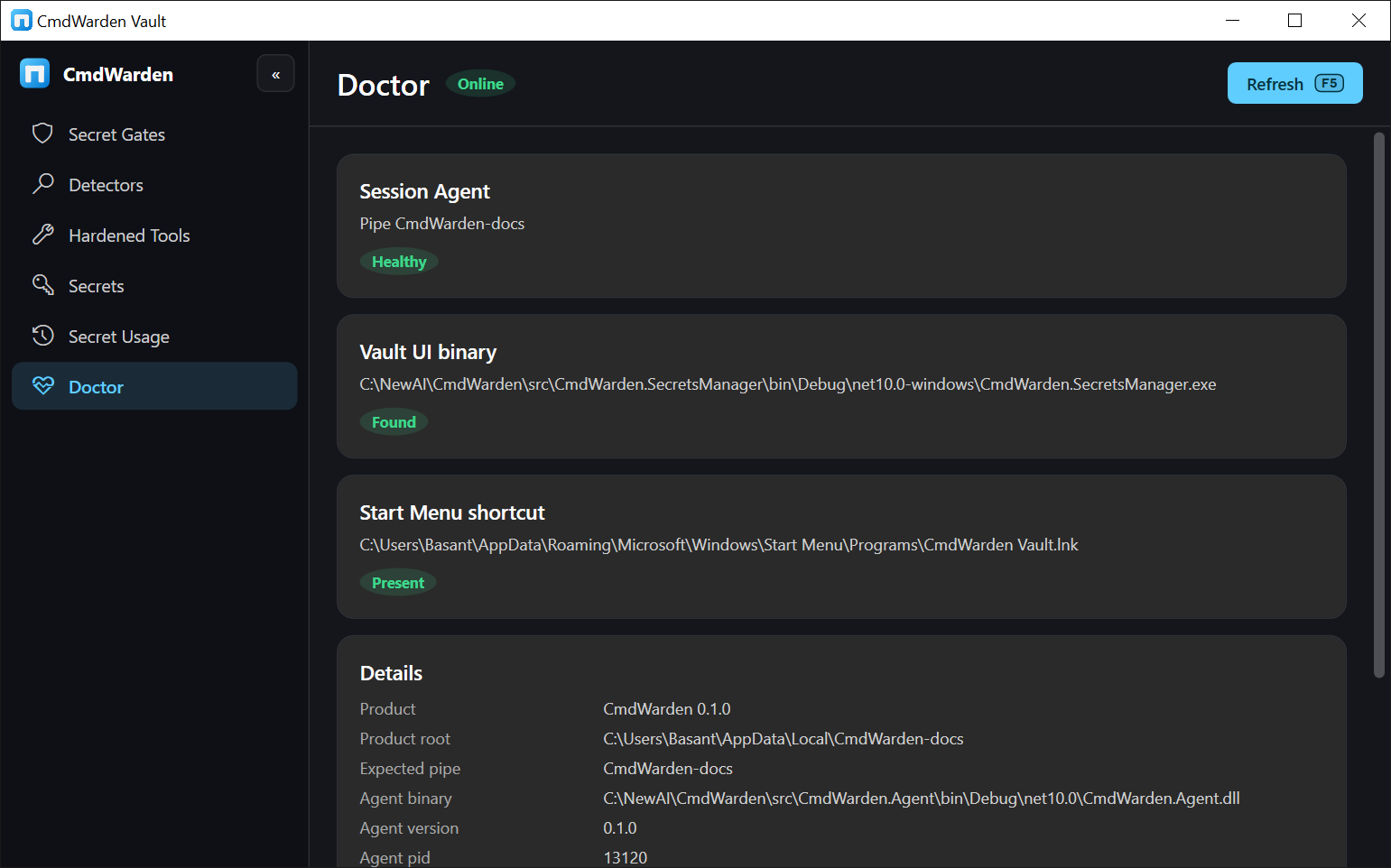
| Doctor | Cards for Session Agent (pipe, version), Vault UI binary, Start Menu shortcut, and a Details list. A Version mismatch pill means the agent binary is older than the app. | cw doctor |
Screens
Secret Gates - defaults per launcher kind, one card per enrolled launcher, and active session allows.
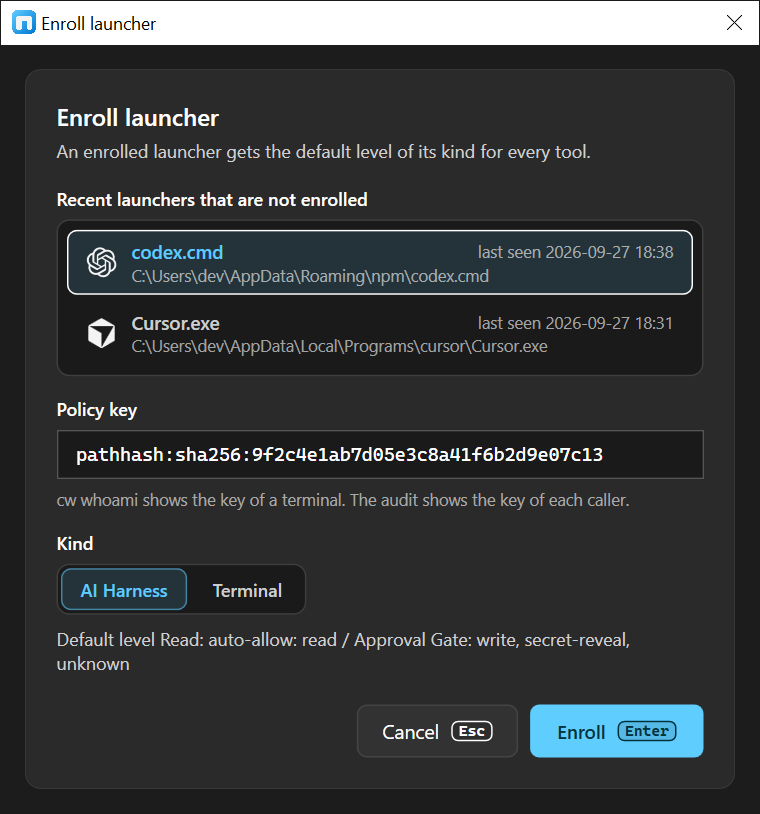
Enroll launcher - click + Enroll launcher or press Ctrl+E. Pick a launcher that the audit saw, or type a policy key. Choose AI Harness or Terminal, then press Enter.
Set level - click the level of a tool on a launcher card. Choose Deny, Read, Trusted, or Full, then press Enter.
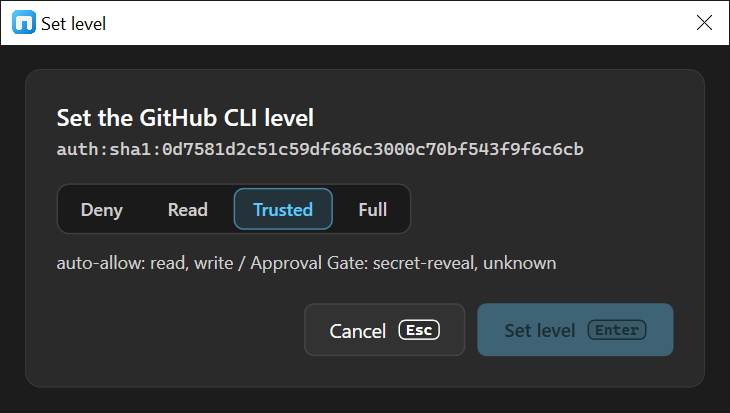
Unenroll - click Unenroll on a launcher card. Or select the card with a click and press Del. Press Enter to unenroll or Esc to keep it.
Each change writes the same policy file as cw policy. The Session Agent reads the change on its next call. It then drops the session allows and remembered answers of that launcher and tool, the same as after a cw policy command.
Detectors - one card per finding with severity, evidence, and the cw command that fixes it.
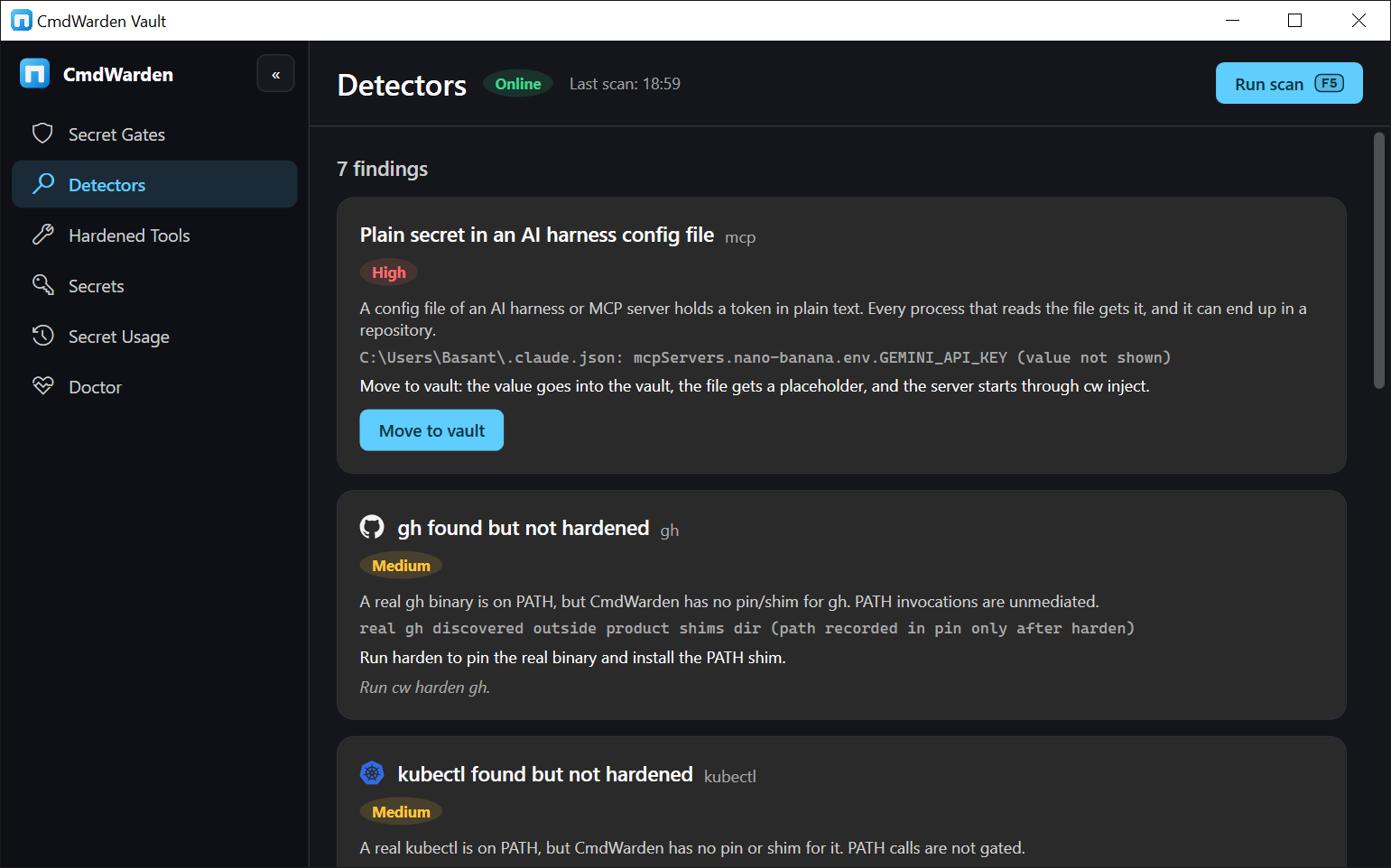
Hardened Tools - one card per catalog tool with its harden state.
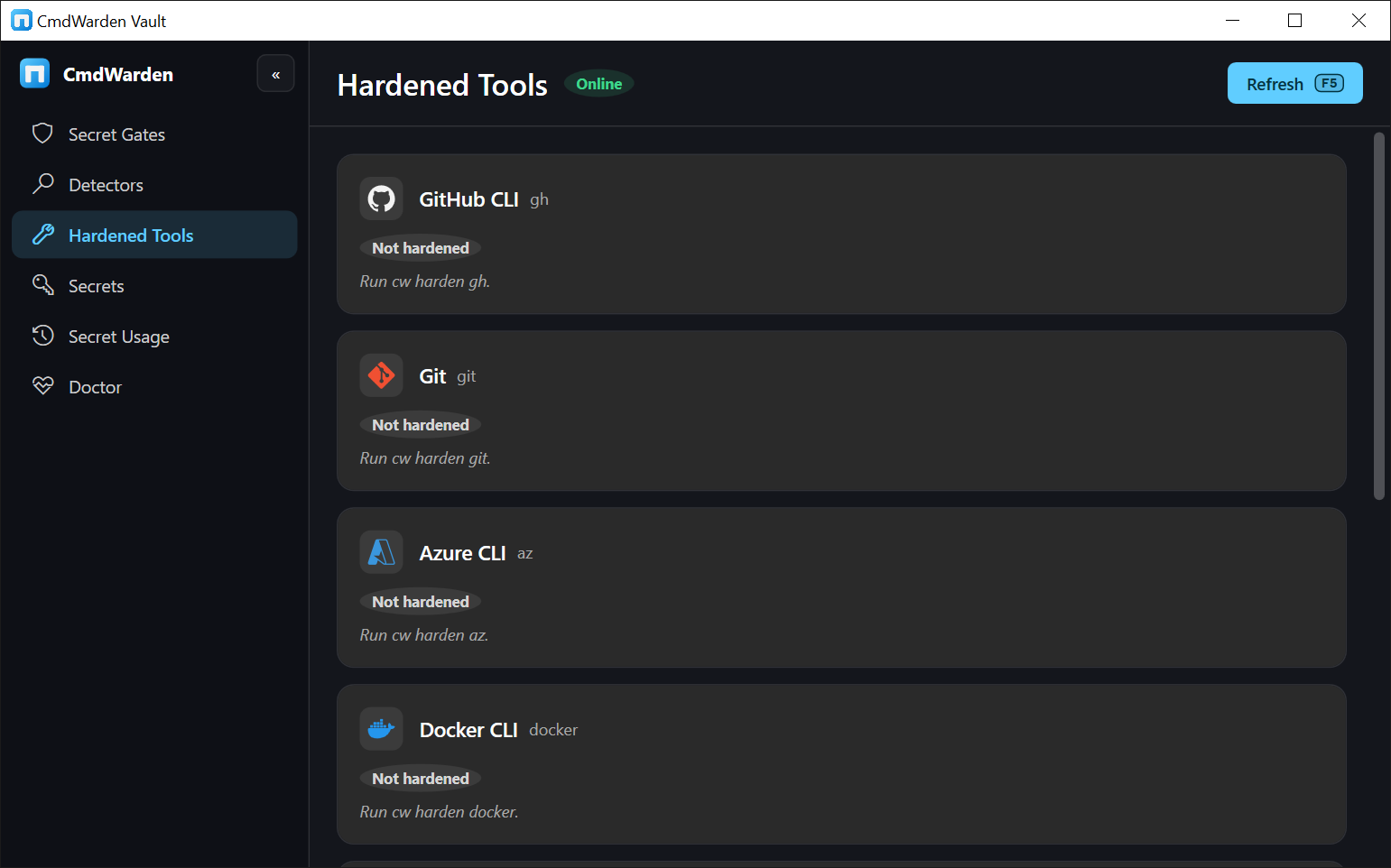
Secrets - every secret name. Select a card with a click or the arrow keys, then click Delete or press Del.
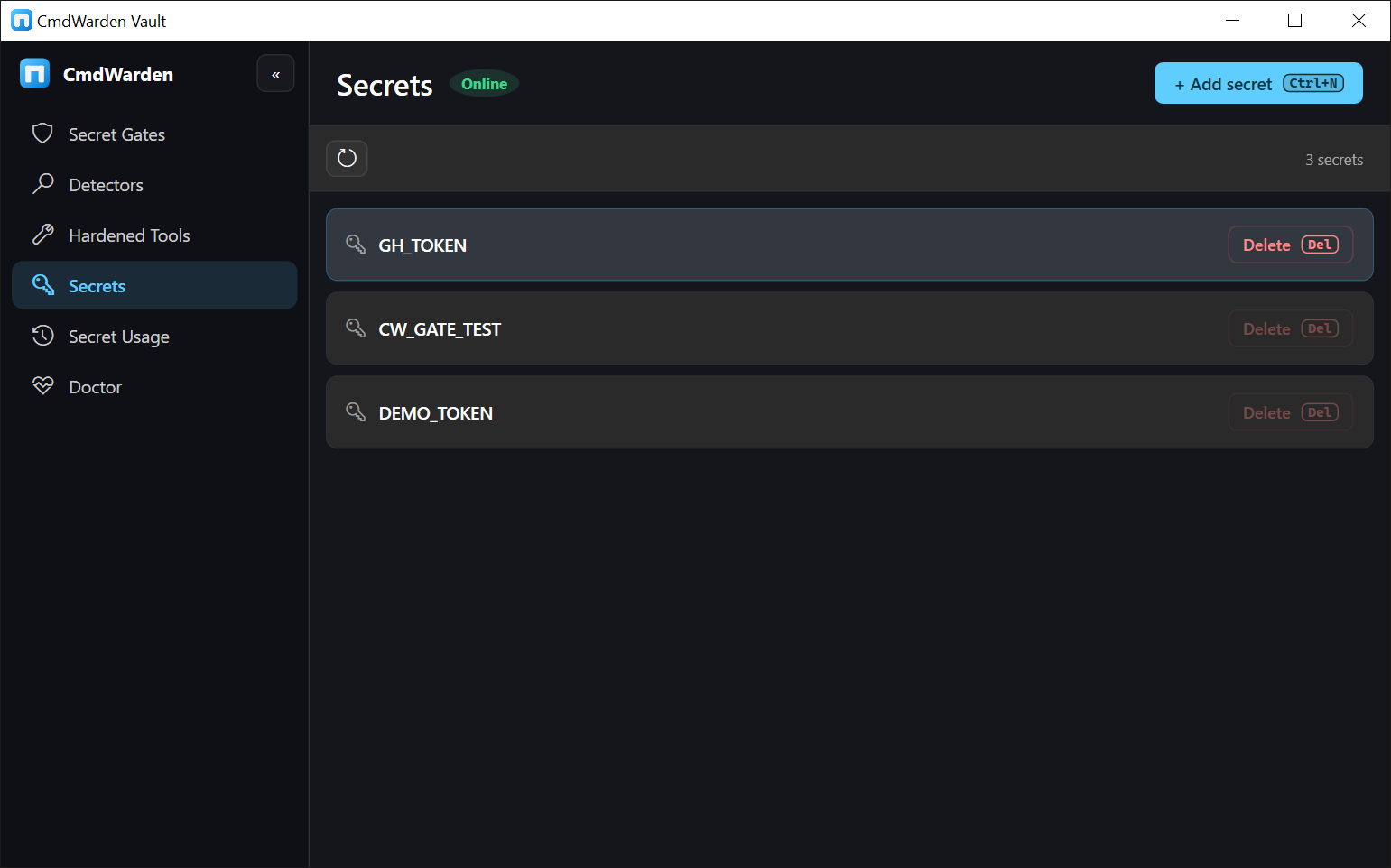
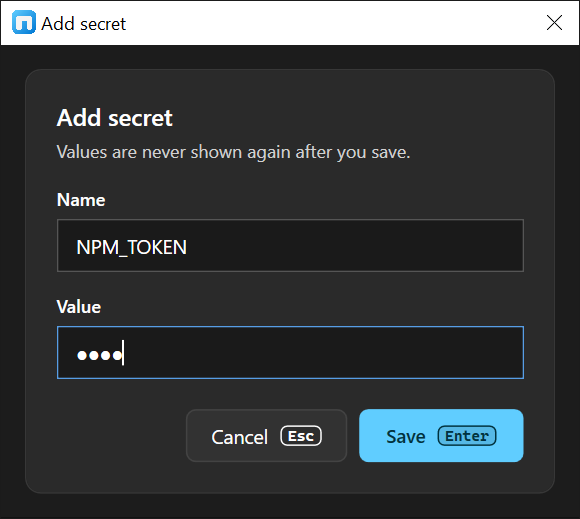
Add secret - type a name and a value. Press Enter to save or Esc to cancel.
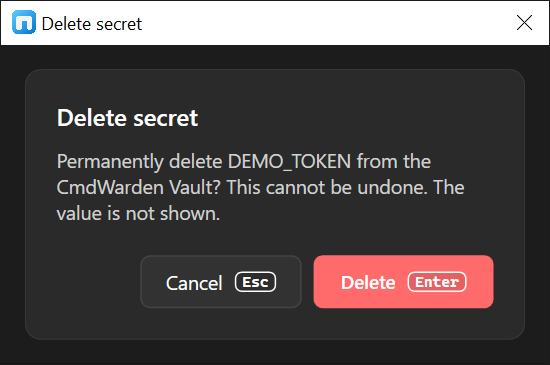
Delete secret - press Enter to delete or Esc to keep the secret.
Secret Usage - the newest gate decisions with launcher, tool, secret name, and decision pill.
Doctor - agent health, binary and shortcut checks, and the details list.
What the Vault does not do
- It does not harden tools. Use
cw harden. - It does not revoke session allows. Use
cw policy sessions --revoke <id>. - It does not show the Approval Gate. That card comes from the Session Agent when a gated command runs.
Each page prints the CLI command for the action it cannot do.