Approve or deny a secret read mid-session
Story (this is the main “screens” use case):
- Beginning (you): create / save a named secret into the CmdWarden Vault.
- Middle of an AI session: you ask the agent to read that same secret (or run a command that needs it).
- Popup: the Approval Gate appears on the desktop with Deny and Approve Once - the agent is blocked until you click.
Saving does not show the popup. The popup appears only when something tries to release / use the secret under a policy that does not auto-allow (typical: AI harness at Read).
Prerequisites: CmdWarden installed (Install), Windows desktop session, and an AI product (Cursor / Claude Code / Codex / …) that can run shell commands.
Part 1 - Beginning: set up and create the secret (no popup)
Do this in your normal Windows Terminal / PowerShell (not the AI chat).
# 1) Agent health
cw doctor

# 2) Enroll this terminal as trusted
cw whoami
cw policy enroll --kind terminal

# 3) Create (save) a named secret - THIS DOES NOT show Allow/Deny
cw save DEMO_TOKEN --value "demo-not-a-real-secret"
# interactive alternative (hides typing):  cw save DEMO_TOKEN
Expect:
cw doctor→ Session Agent UP- Enroll → a terminal row in
cw policy list - Save → secret stored as Credential Manager target
CmdWarden/secret/DEMO_TOKEN - No Approval Gate window on save (you are only storing, not releasing)
Without the CLI: open CmdWarden Vault from the Start Menu, go to Secrets, click + Add secret, type the name and value, click Save. See UC9. The result is the same Credential Manager target.
Optional - prove you can read it from the terminal without a popup (Trusted terminal auto-allows inject/write):
cw inject +DEMO_TOKEN -- cmd /c echo %DEMO_TOKEN%
# prints: demo-not-a-real-secret
# parent shell still does NOT keep DEMO_TOKEN in env
Part 2 - Enroll the AI harness (stricter: needs click to release secrets)
In the AI product’s integrated terminal (Cursor / Claude Code / Codex terminal panel):
cw whoami
cw policy enroll --kind ai-harness
cw policy list
Expect: a second policy key with kind ai-harness (default tool level Read).
Read does not auto-allow inject (class write) or gh secret-reveal - those need the Approval Gate.
Give the harness the rules in AI harness rules. Paste them into its rules file (CLAUDE.md, .cursorrules, AGENTS.md).
Part 3 - Middle of the AI session: agent tries to read that secret → popup
Stay in the AI product. In the chat, ask something that makes the agent run inject for the secret you created, for example:
Run this in the terminal and show me the output:
cw inject +DEMO_TOKEN -- cmd /c echo %DEMO_TOKEN%
What happens next:
- The agent starts the tool call (shell command).
- CmdWarden Session Agent evaluates: launcher = AI harness, tool = inject, secret name = DEMO_TOKEN.
- Policy does not auto-allow → the Approval Gate opens as a Windows desktop popup (Fluent-style card), while the agent is still mid-run and waiting.
- The popup shows the launcher, the command, the CWD, and KEYS: DEMO_TOKEN. It shows the secret name only, never the value.
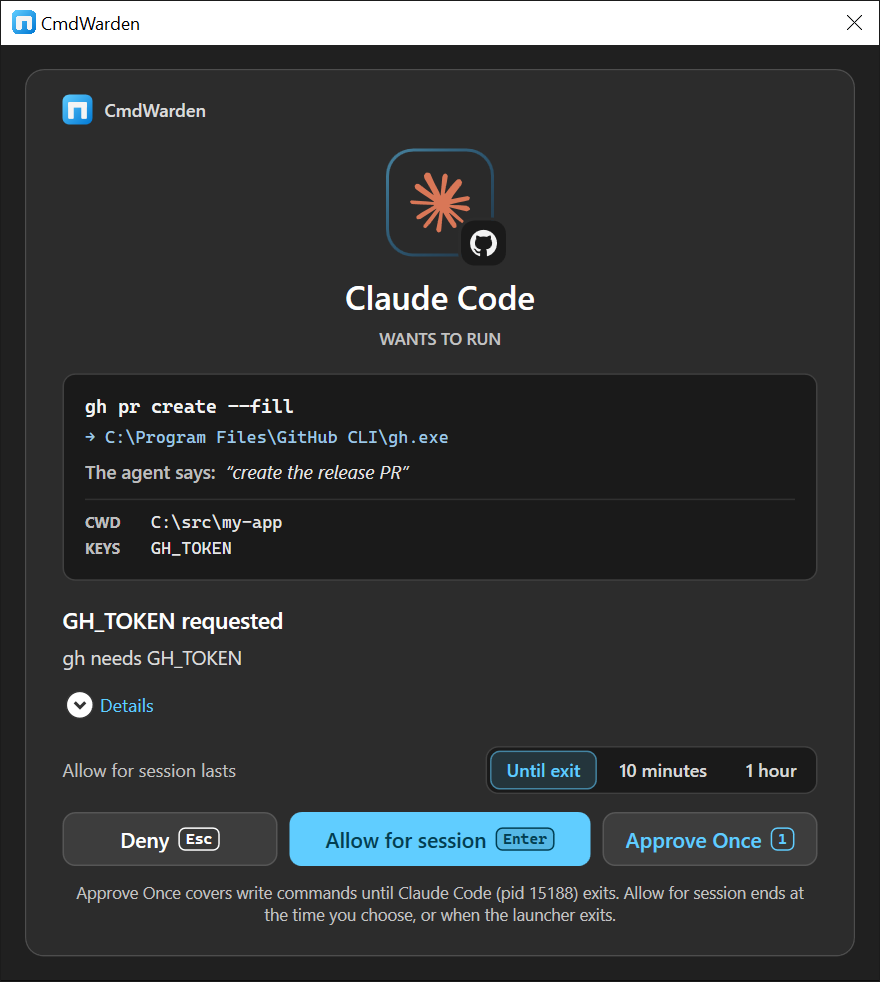
- You choose:
| You click or press | Result in the AI session |
|---|---|
| Approve Once (Enter, or 1 when the card offers Allow for session) | This read is allowed; the child can use DEMO_TOKEN; agent can continue. Later reads of the same class for this tool and secret are allowed until the launcher exits or after 60 idle minutes. A higher class prompts again. |
| Allow for session (Enter or A) | This read and every later read of the same class (or lower) for this tool and secret are allowed. The grant ends when the launcher process exits or after 60 idle minutes. To end it sooner, choose 10 minutes or 1 hour in the Allow for session lasts row first. The button is hidden for unenrolled launchers. It never covers secret-reveal. |
| Deny (Esc) | Release is blocked; agent sees failure / permission denied. For 2 minutes, the same launcher gets no new popup for this tool. Each retry is denied at once. |
| Close the window | Same as unavailable → fail closed (block). |
The popup ignores every key except Esc for the first 600 ms. Thus a key that you type in the terminal cannot approve it by mistake. Esc works at all times.
Every decision appears on the Secret Usage page of CmdWarden Vault and in cw audit. Active session grants appear on the Secret Gates page. Revoke one with cw policy sessions --revoke <id>.
Important: The Allow/Deny UI is a separate OS window on the desktop, not a message inside the chat. It appears during the agent step that tries to read the secret - that is the “middle of the AI session” moment.
Cleanup when you are done experimenting:
cw delete DEMO_TOKEN
Same idea with GitHub (gh) instead of a custom name
If you prefer GitHub’s token rather than DEMO_TOKEN:
# Beginning (your terminal) - after enroll terminal + ai-harness as above
cw harden gh
# open a new shell so PATH uses the CmdWarden shim
where.exe gh
Then mid-AI session, ask the agent e.g.:
Run
gh auth tokenand show me the result.
That is a secret-reveal class command under Read for the harness → same Approve Once / Deny popup, with keys showing GH_TOKEN (name only).
If the popup does not appear
cw doctor
cw whoami          # from the same place the agent runs commands
cw policy list
cw audit -n 20
Check that:
- Harness is enrolled as ai-harness (not the same key as terminal).
- The command actually goes through CmdWarden (
cw inject …or shimmedgh). - Approval helper exists:
agent\approval-gate\CmdWarden.ApprovalGate.exeunder the tool install. - Missing helper → fail closed (no silent allow), not a chat-only error.
The Doctor and Secret Gates pages of CmdWarden Vault show the same agent state and enrollments without a terminal.