Install CmdWarden
CmdWarden carries its own .NET runtime. You need no .NET install and no admin prompt. Commands: cw and cmdwarden.
| Section | Go there when |
|---|---|
| 1. Requirements | You start from a clean machine |
| 2. Install | You install for the first time |
| 3. Set up | You protect your tools and your AI harness |
| 4. Verify | You check the install |
| 5. What you get | You want to see the app before you set it up |
| 6. Other install ways | You want the dotnet tool or a build from source |
| 7. Update | A new release is out |
| 8. Uninstall | You remove CmdWarden |
| 9. Troubleshooting | Something fails |
1. Requirements
| Need | Notes |
|---|---|
| Windows 10 or 11 | CmdWarden is Windows only. It needs a desktop session for the Approval Gate card. |
| About 250 MB of disk | The download is about 95 MB. Most of it is the .NET runtime that CmdWarden carries. |
Install alone changes nothing. gh, git, and the other tools run as before until you run cw setup or cw harden.
2. Install
The setup zip is the install that works now.
Setup zip:
- Download
CmdWarden.<version>-setup.zipfrom the latest release. - Extract the zip, then double-click
install.cmd. Do not run it as admin.
The installer copies CmdWarden to %LOCALAPPDATA%\CmdWarden\app, puts it on your user PATH, and adds CmdWarden to Windows Settings > Apps. When an older CmdWarden dotnet tool is there, it removes that copy. At the end it offers to run cw setup.
Portable zip: extract CmdWarden.<version>-win-x64.zip anywhere and run .\cw.exe setup.
winget: the winget catalog does not have BasantPandey.CmdWarden yet (#64). winget install does not find CmdWarden today.
3. Set up
Run this once, in your own terminal, not in the AI harness:
cw setup
Each step asks first. Enter means yes. cw setup --yes runs every step with no questions.
| Step | What it does |
|---|---|
| terminal | Enrolls this terminal as Trusted. Your own work gets no card. |
| tools | Hardens each tool it finds: gh, git, az, docker, npm, aws, kubectl, and ssh. When a tool comes before the shims on the machine PATH, it fixes PATH with one admin prompt. |
| harnesses | Finds Claude Code, Cursor, Codex, and Grok. Enrolls each one at Read. Adds the policy hook, the leak guard, and the MCP server. For Codex, it also offers to enroll the sandbox accounts. |
| shortcuts | Adds the Start Menu entry, the tray icon at logon, and the Settings > Apps entry. |
| canary | Plants fake tokens. A use of one shows an alarm and blocks the app that used it. |
| protect | Turns on the secret protections that each harness has but leaves off. See Trust. |
| try | Runs cw try: a stand-in agent asks for a fake secret, and you see the real card. |
Then restart your AI harness, so it reads the new PATH and hooks. cw setup is safe to run again: a step that is done says so.
Grok
When Grok is installed, the harness step enrolls grok.exe at Read. It also adds the hook, the leak guard, and the MCP server.
| Command | File |
|---|---|
cw hook install grok |
~/.grok/hooks/cmdwarden.json (PreToolUse, matcher Bash\|PowerShell\|Read) |
cw leak-guard install grok |
The same file (PostToolUse, matcher .*) |
cw mcp install grok |
~/.grok/config.toml ([mcp_servers.cmdwarden]) |
Restart Grok after these commands. Grok loads hooks at the start of a session. The policy hook stops a denied shell command and a read of a .env file that still holds plain values. The leak guard hides vault values in tool output. The MCP server lets Grok call run_with_secret, list_allowed, and why_denied. No secret value goes back to the model.
Run cw try at any time to see the card again. It never uses a real token.
4. Verify
Open a new terminal, then run:
cw version
cw doctor
cw doctor starts the Session Agent when it is not running. State lives under %LOCALAPPDATA%\CmdWarden\.
Check the signatures of the installed files. A signed release shows Valid on each row:
Get-ChildItem "$env:LOCALAPPDATA\CmdWarden\app" -Recurse -Include cw.exe, CmdWarden.*.exe |
  Get-AuthenticodeSignature | Format-Table Status, Path
The install folder holds these parts:
| Part | Role |
|---|---|
cw.exe, cmdwarden.exe |
CLI |
agent\ |
Session Agent: policy, vault, audit, approval |
agent\approval-gate\ |
Approval Gate card |
secrets-manager\ |
CmdWarden Vault desktop app and tray icon |
shim-payload\ |
PATH shims that cw harden installs |
try-agent\ |
The stand-in agent of cw try |
runtime\ |
The .NET runtime that every part uses |
A harden copies the shims to %LOCALAPPDATA%\CmdWarden\shims and the base runtime to %LOCALAPPDATA%\CmdWarden\runtime.
5. What you get
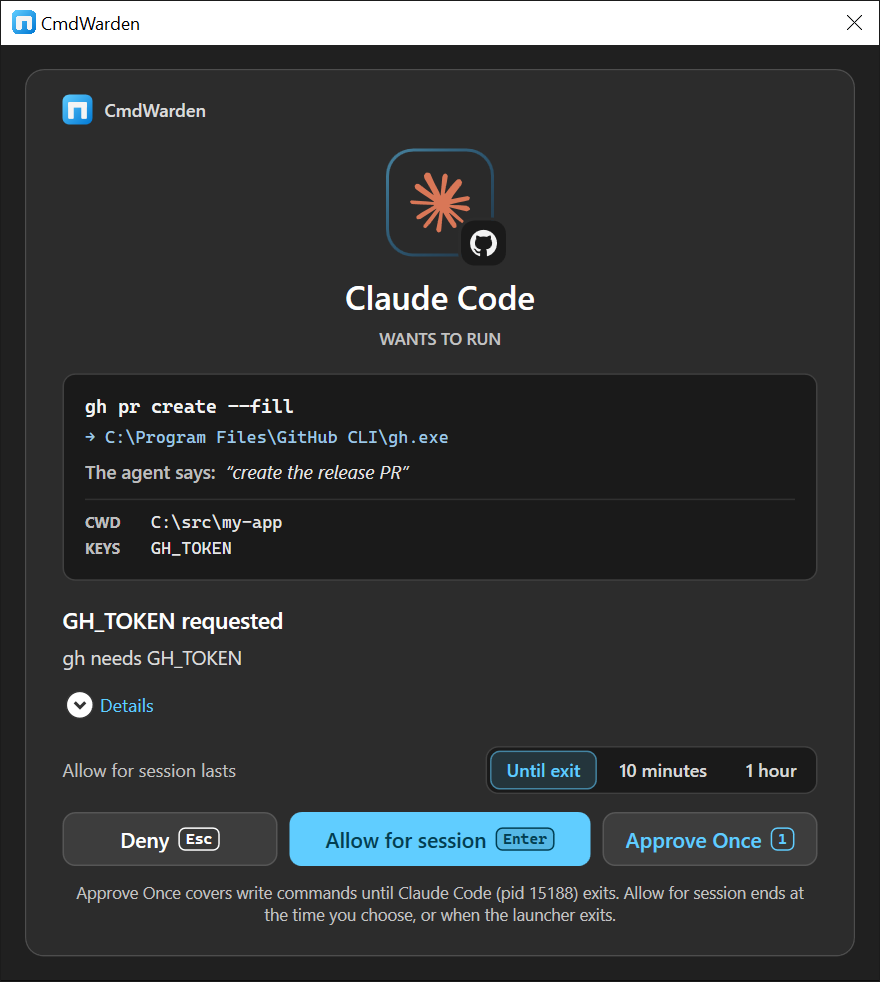
Approval Gate
The card appears on your desktop when policy does not auto-allow a secret release. The command waits until you click Deny, Allow for session, or Approve Once. When the card offers Allow for session, it is the default: press Enter. Press 1 for Approve Once and Esc for Deny. The card offers it to an enrolled app, never for a secret read. Other cards show Deny and Approve Once (Enter).
Tray icon
The CmdWarden tray icon shows how many cards you answered today, lists live session allows, revokes them, and tells you when CmdWarden blocks a retry or a canary use. See Tray icon.
CmdWarden Vault
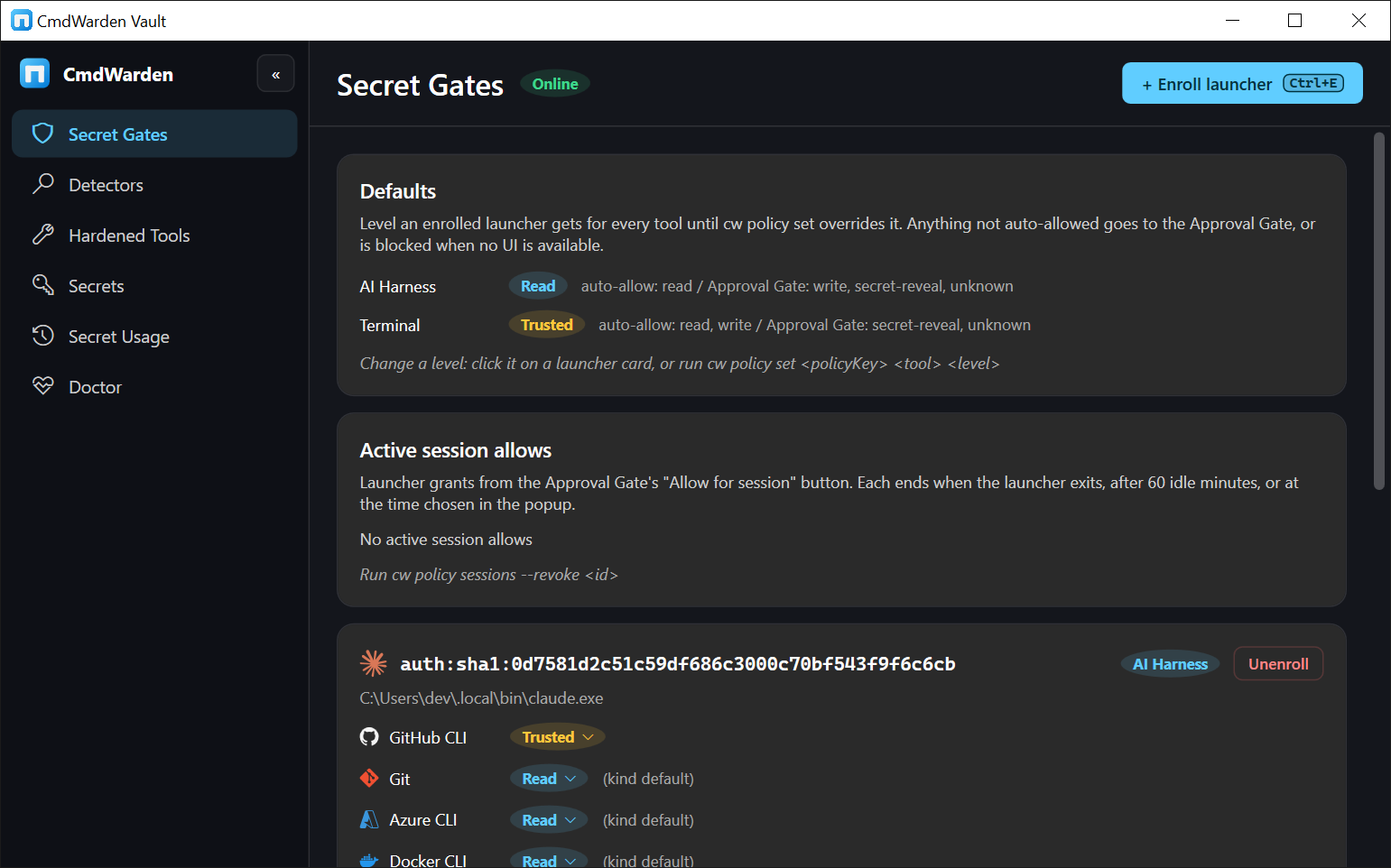
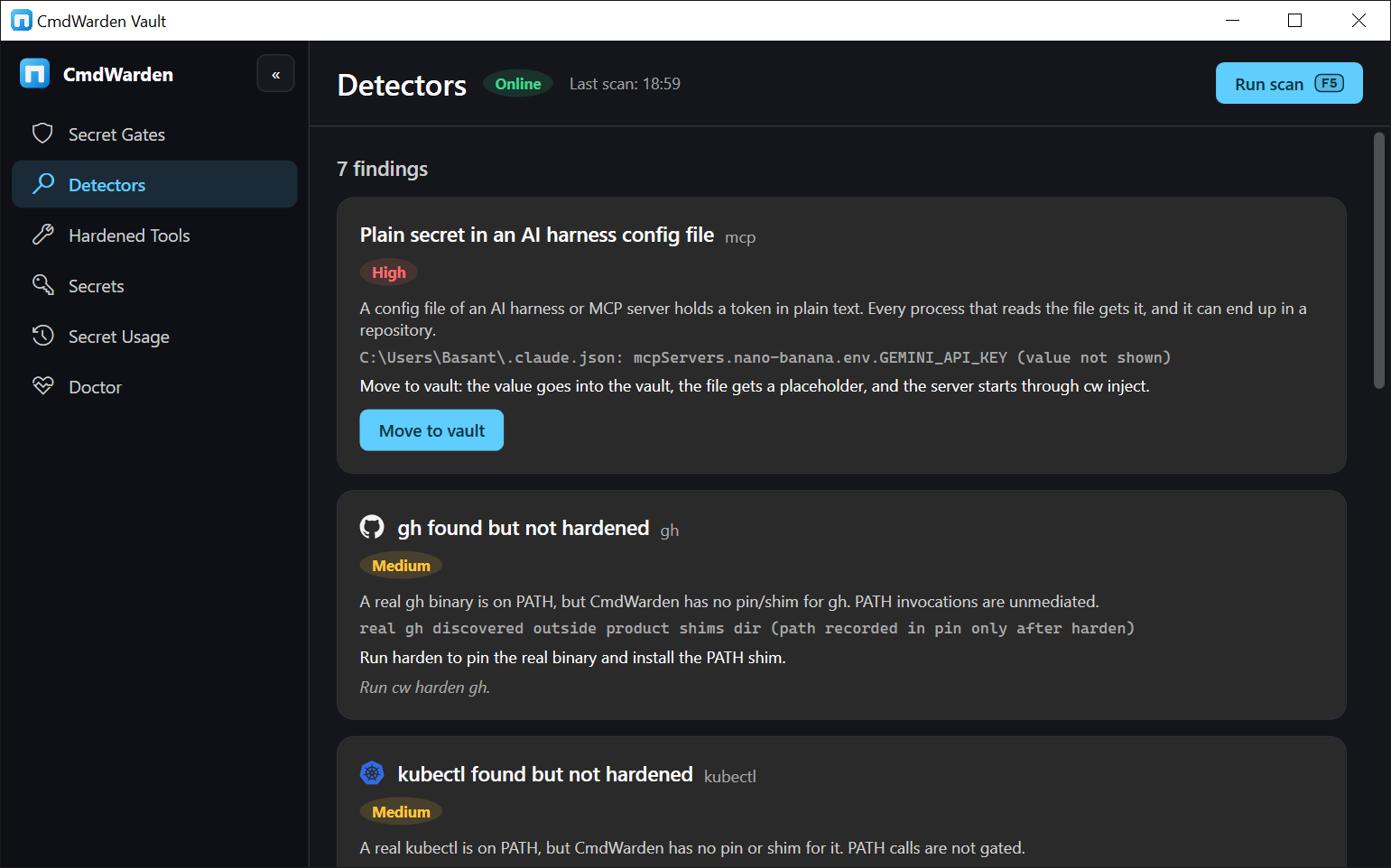
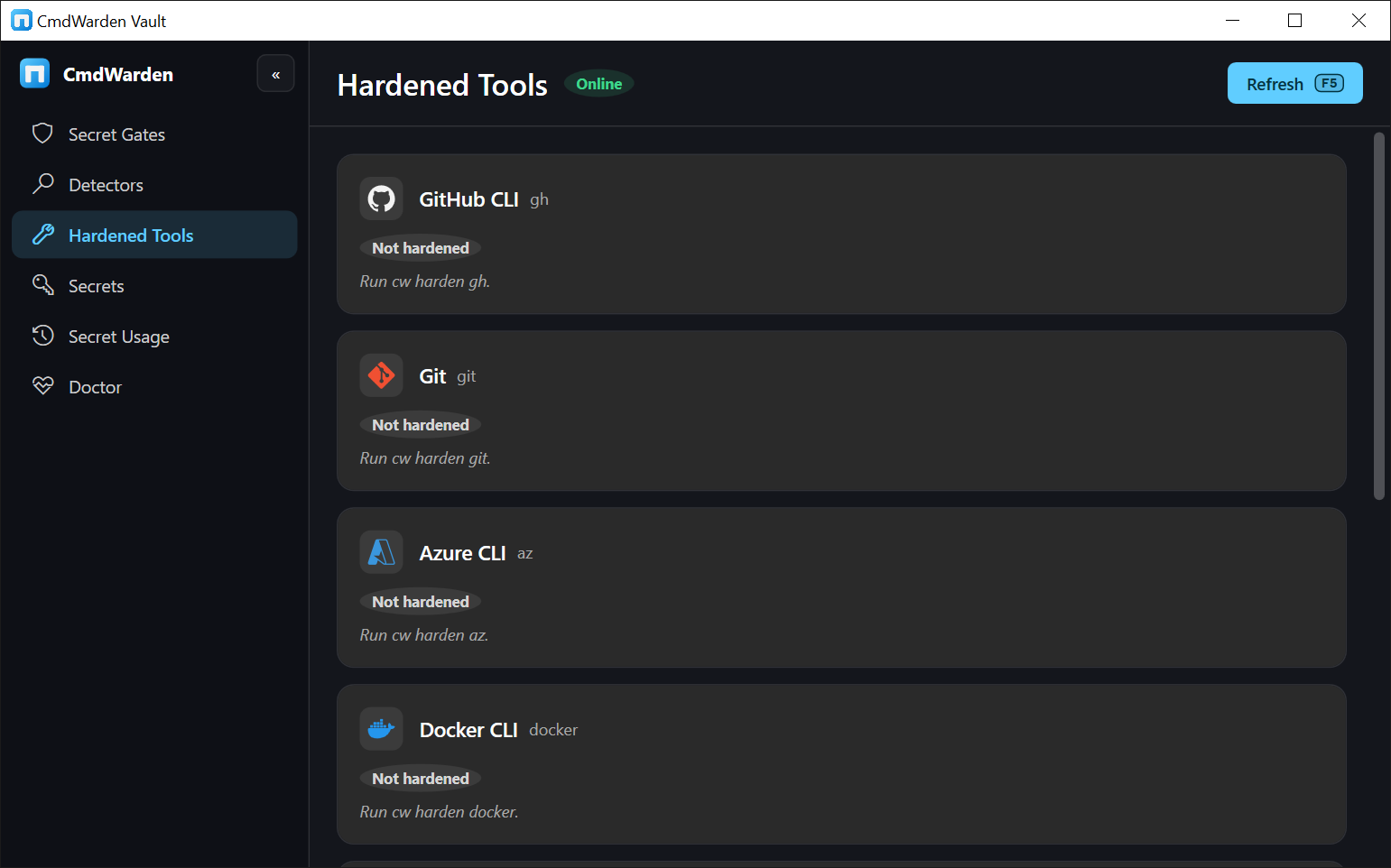
Open CmdWarden Vault from the Start Menu. Six pages. Every page is read-only except Secrets and Secret Gates. The app never shows a secret value.
Secret Gates - defaults per launcher kind, one card per enrolled launcher, and active session allows. Enroll with Ctrl+E, click a level to change it, and unenroll with Del.
Detectors - one card per residual risk, with evidence and the cw command that fixes it.
Hardened Tools - one card per catalog tool with its harden state.
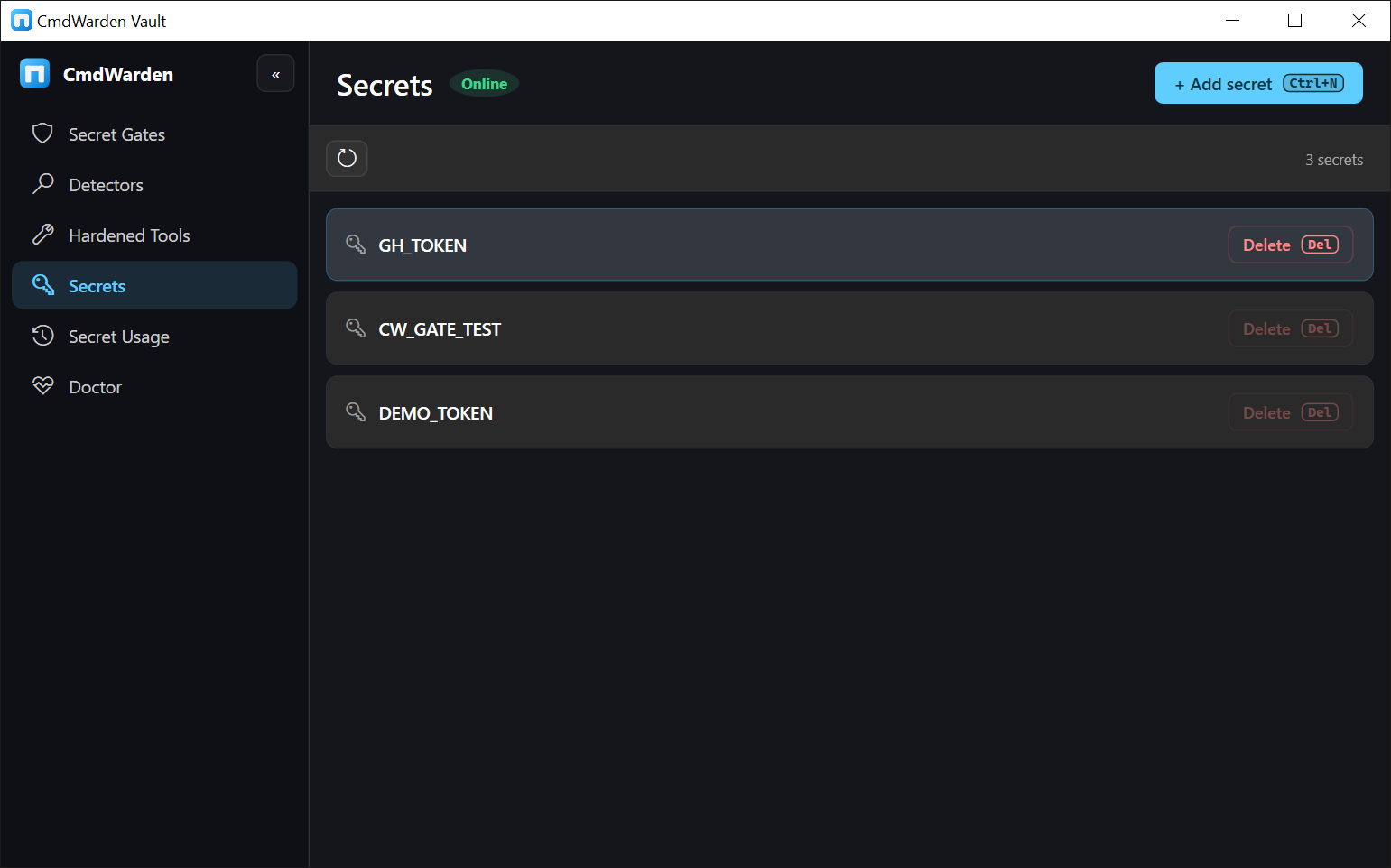
Secrets - every secret name in the vault. Add with Ctrl+N. Select with the arrow keys and delete with Del. All keys.
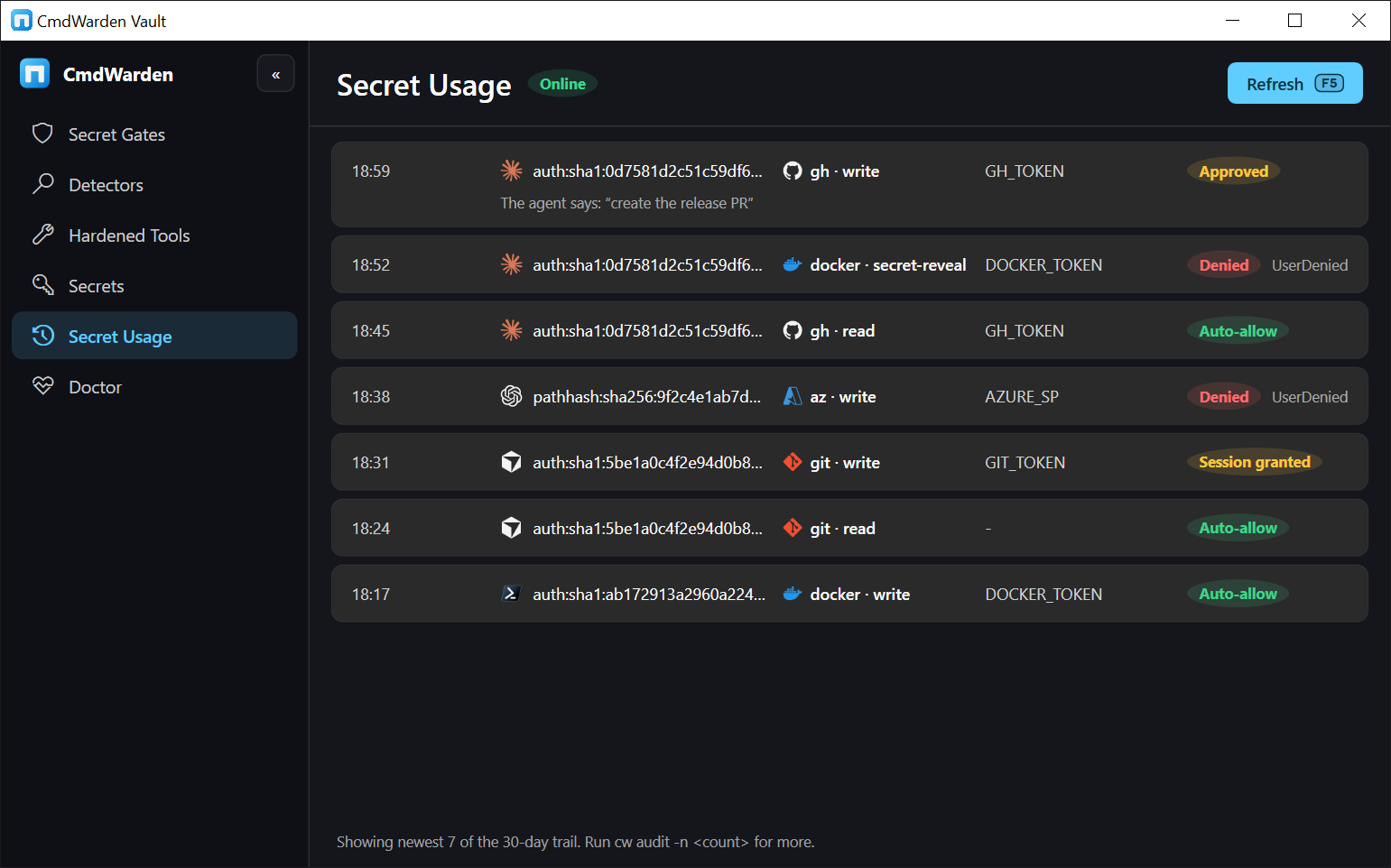
Secret Usage - the newest gate decisions with launcher, tool, secret name, and decision.
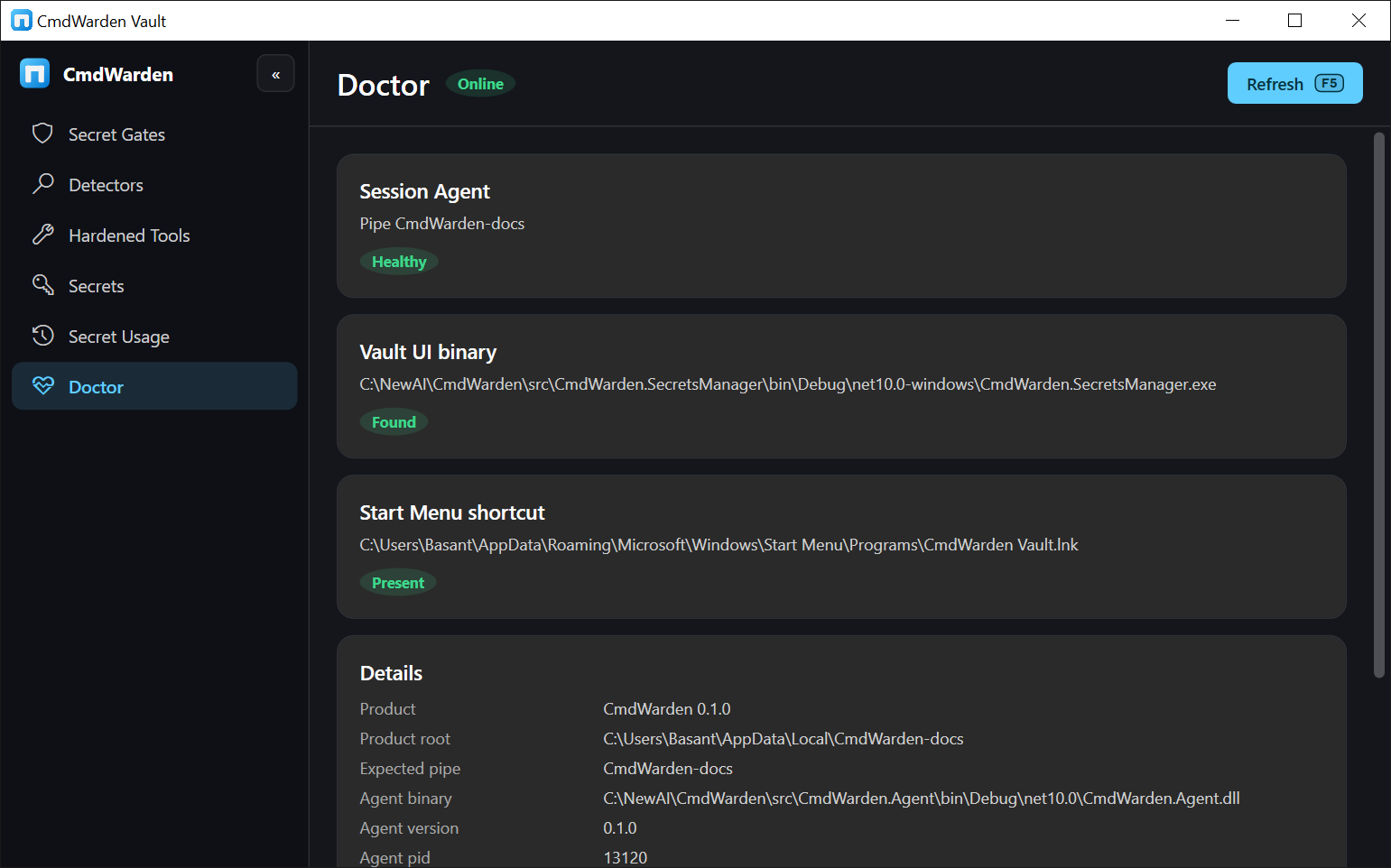
Doctor - agent health, binary and shortcut checks, and the details list.
6. Other install ways
dotnet tool
NuGet.org does not have the package yet (#64). dotnet tool install -g CmdWarden does not work from NuGet.org today.
The tool needs the .NET 10 SDK. Download CmdWarden.<version>.nupkg from the release into a folder. Then pass that folder:
dotnet tool install -g CmdWarden --add-source C:\packages
cw setup
Scoop
Each release has CmdWarden.<version>-packages.zip with a Scoop manifest. Put scoop\cmdwarden.json in a bucket, then run scoop install cmdwarden.
From source
git clone https://github.com/BasantPandey/CmdWarden.git
cd CmdWarden
pwsh ./scripts/Build-Portable.ps1 -Out artifacts/portable
.\artifacts\portable\cw.exe setup
The script builds every part and copies the .NET runtime of your SDK next to them. It ends with a check that cw.exe runs with no .NET on PATH.
GitHub Actions artifact
Every green build on main uploads the portable folder. Open Actions, pick the latest run, download the artifact, extract it, and run .\cw.exe.
7. Update
| Install way | Update |
|---|---|
| Setup zip | cw update |
| winget | The catalog does not have BasantPandey.CmdWarden yet. |
| dotnet tool | NuGet.org does not have the package yet. |
cw update --check   # only say if a newer release is available
cw update           # install the newest release
cw update reads the newest GitHub release and downloads its setup zip. It compares the sha256 of the zip with the digest that GitHub shows for the asset. A wrong or missing digest stops the update. Then the installer of the zip runs in a new window, and cw stops. The installer stops the Session Agent and replaces %LOCALAPPDATA%\CmdWarden\app. Your policy, vault, and shims stay.
8. Uninstall
Use one of these:
- Run
cw uninstall. It runs the same uninstaller as Settings > Apps, in a new window. - Open Windows Settings > Apps, select CmdWarden, and click Uninstall.
- Double-click
uninstall.cmdfrom the setup zip.
For a winget install, run cw uninstall first. It removes the hooks and shims, then it runs winget uninstall for you. A plain winget uninstall removes only the files.
The uninstaller works when cw is broken or gone. Each step runs on its own. A failed step prints a warning, and the next step continues.
- Unhardens every tool, so their logins go back to the stock stores.
- Removes the hooks, MCP servers, and protections from Claude Code, Cursor, Codex, and Grok, and removes the canaries.
- Stops the Session Agent, the Approval Gate, and CmdWarden Vault.
- Removes the Start Menu entry and the Desktop icon.
- Uninstalls an old dotnet tool copy.
- Removes CmdWarden folders from the user PATH. For the machine PATH, it asks for one admin prompt.
- Deletes
%LOCALAPPDATA%\CmdWarden: policy, pins, shims, audit, and the app. - Asks before it deletes saved secrets from Credential Manager (
CmdWarden/...). The default is to keep them. - Removes the entry in Settings > Apps, and the winget package when winget installed it.
Options:
.\Uninstall-CmdWarden.ps1 -KeepData          # keep policy, pins, and audit, for a reinstall
.\Uninstall-CmdWarden.ps1 -RemoveSecrets     # also delete saved secrets
.\Uninstall-CmdWarden.ps1 -Quiet             # ask nothing; keep secrets; skip the admin PATH step
9. Troubleshooting
| Symptom | Fix |
|---|---|
cw not found |
Open a new terminal. PATH changes reach only new terminals. |
SmartScreen warns about install.cmd |
The release is not signed yet. Check the sha256 of the zip against the release page, then click More info > Run anyway. |
cw setup skips the terminal step |
You ran it inside an AI harness. Run it in your own terminal. |
cw doctor says agent binary missing |
The install folder is not complete. Install again. |
cw doctor says pipe exists but access denied |
An agent runs elevated or as another user. Run cw agent stop from that terminal, then cw agent start from a normal one. |
| No Approval Gate card | Check agent\approval-gate\CmdWarden.ApprovalGate.exe exists in the install folder. A missing card fails closed. |
cw is broken and you want it gone |
Run the uninstaller (section 8). It does not need a working cw. |
Next: Policy quick start · Trust · User guide