Add and remove secrets in CmdWarden Vault
When: You want to store a named secret, or remove one, without the terminal.
- Open CmdWarden Vault from the Start Menu or the Desktop icon. If both are missing, run
cw shortcut install --desktoponce. - The app opens on the Secrets page. The badge next to the title shows the Session Agent state.
- Click + Add secret or press Ctrl+N. Type the Name and the Value. Click Save or press Enter.
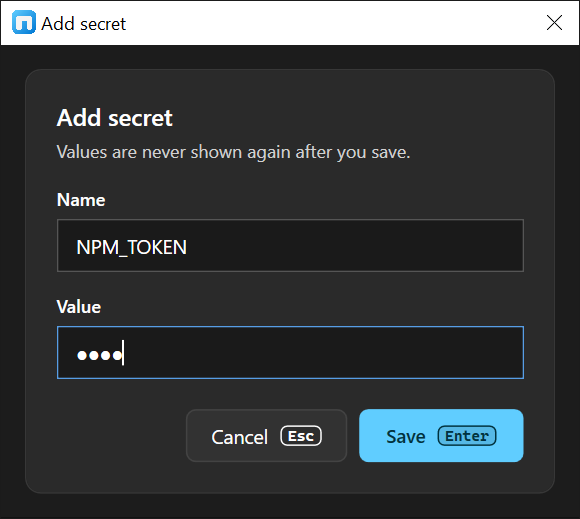
- The new name appears as a card. The value is never shown again.
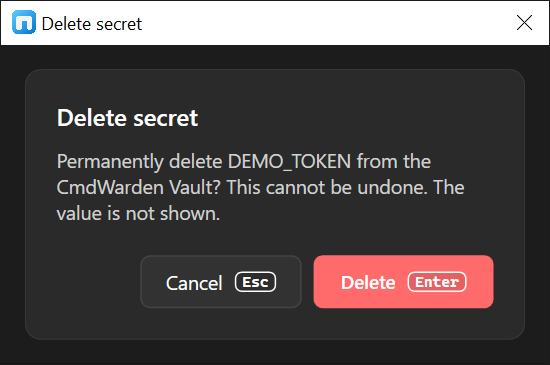
- To delete: click the card, or press Down / Up to select it. Click Delete or press Del. Press Enter to confirm, or Esc to keep the secret.
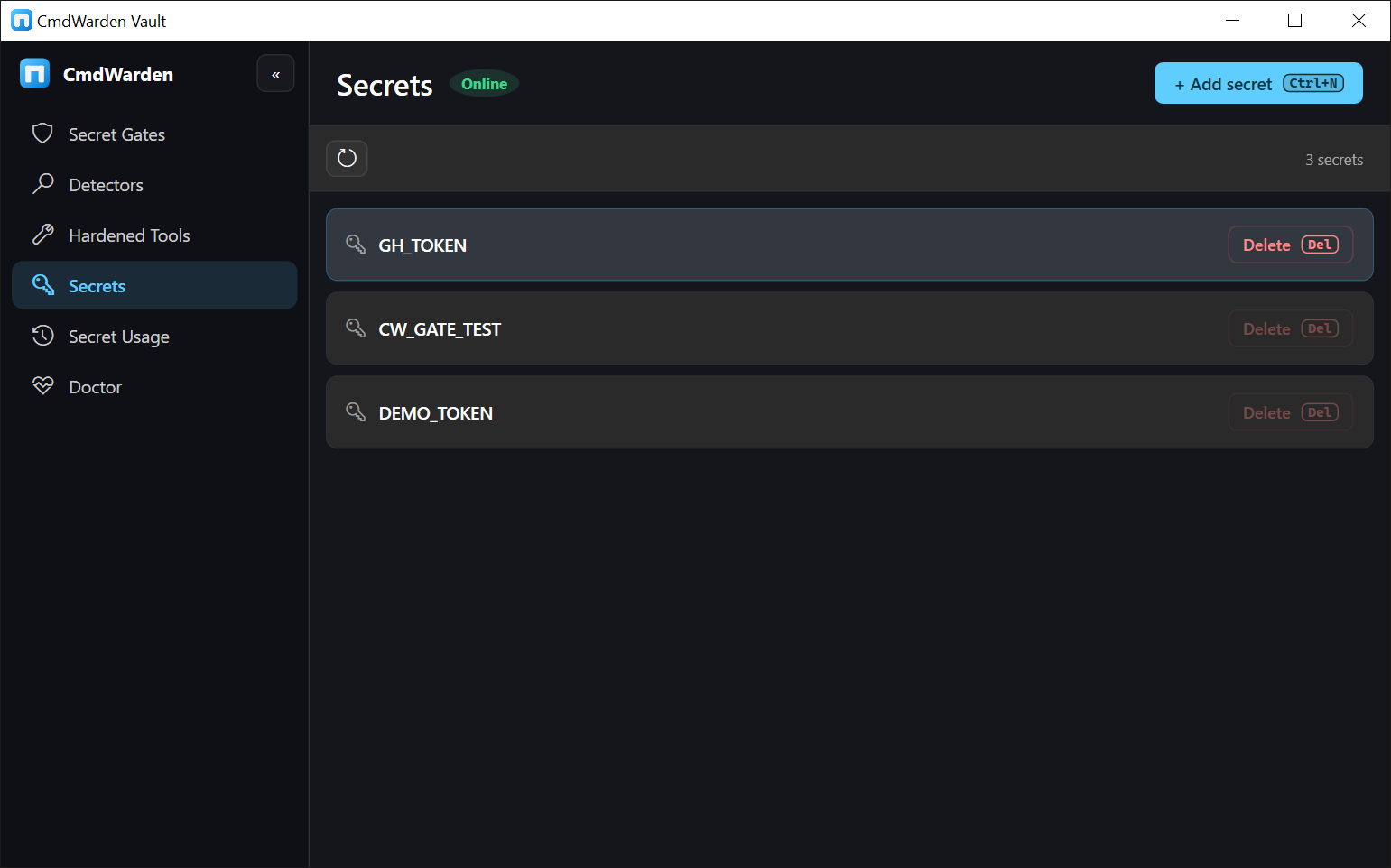
Expect: the same Credential Manager target as cw save (CmdWarden/secret/<NAME>). The list refreshes on its own every few seconds. A yellow banner Session Agent not running - actions disabled means the agent is down; run cw doctor in a terminal. A banner that says denied access means the agent runs elevated. Stop it from an admin shell, then start it from a normal shell.
Saving in the Vault does not show the Approval Gate. The gate appears only when a launcher tries to release the secret (UC2 Part 3).